
Product update 001
Meet the new Lumina
Over the past few weeks, we’ve been improving Lumina based on your feedback and the work we’ve done together.
We’ve redesigned the app to make it easier to move from understanding your guests to planning a campaign and creating its content. Your hotel’s information stays with the work as you move between tools.
Below are the main changes, with screenshots from the Budapest workspace and new step-by-step guides to help you find your way around.

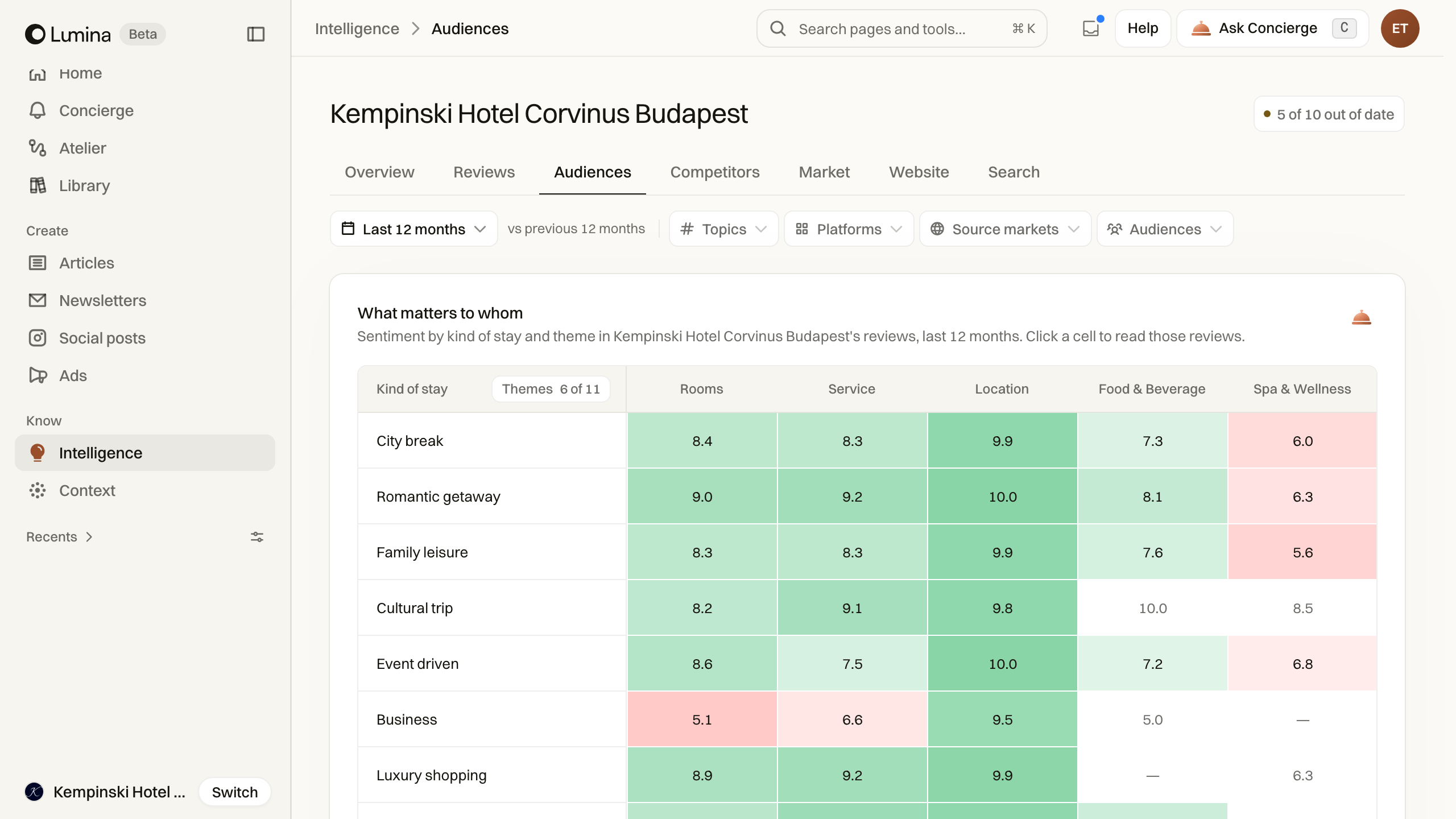
See what matters to different guests
A family and a couple can choose the same hotel for different reasons. Open a theme in Intelligence, narrow it to a subtopic and read the reviews behind it. Compare what different guest types value before deciding which story to tell.
You can also explore competitors, seasonal demand and search questions. Choose Ask Concierge beside a finding when you want to turn a finding into a question or a campaign idea.
Ask Concierge while you work
You do not need to copy a chart into a new conversation to ask about it. Open Concierge from the finding and continue with that context. Ask a question such as “What do couples value about our rooms?” Add a file or a document from Context, or use Deep Research for a web report with sources.
Concierge also works inside your content and Atelier canvas. Ask for a shorter opening in an article, or ask it to add and connect pieces in the canvas. Review proposed copy changes before applying them.
Plan the campaign before making the content
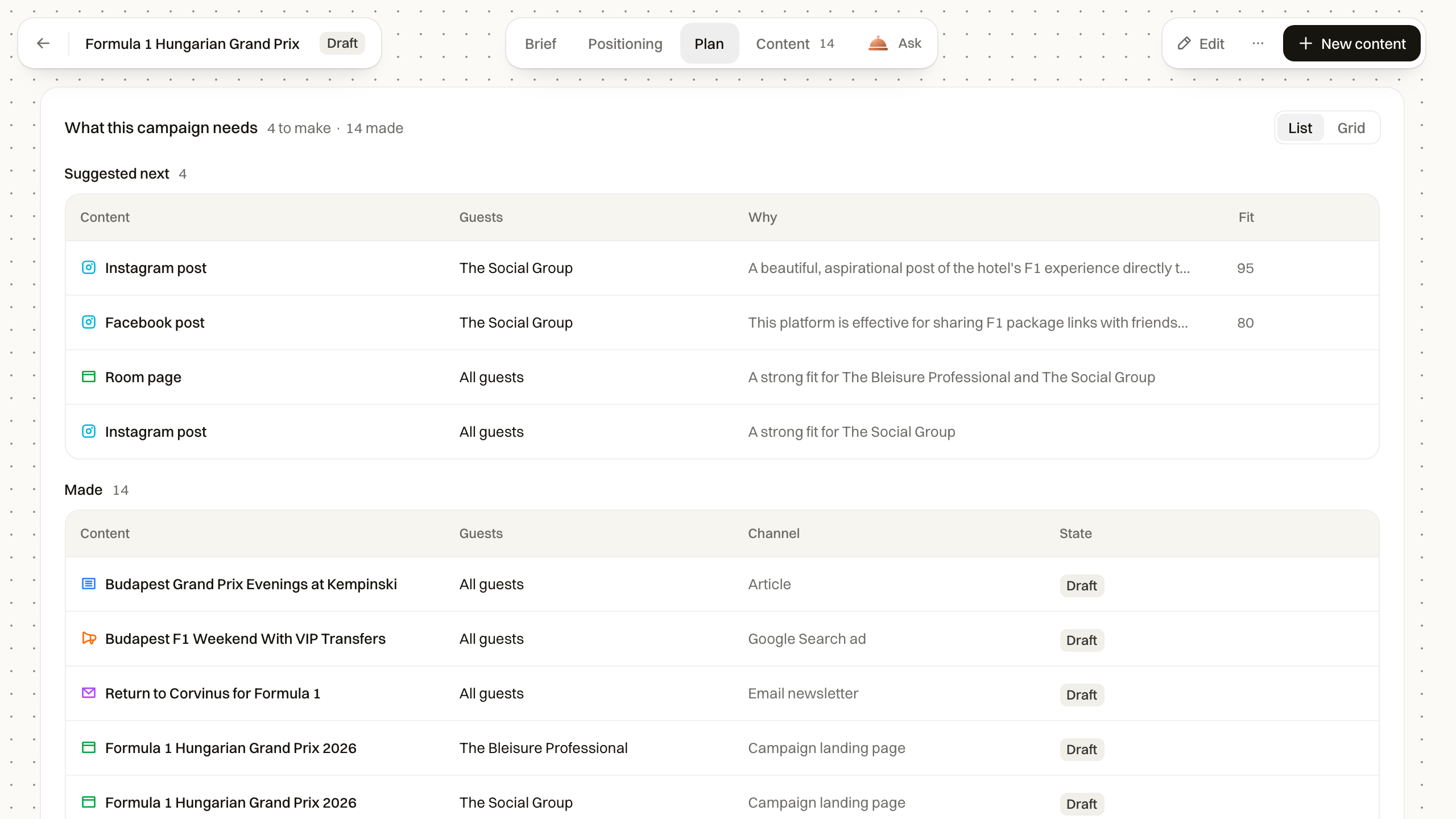
An email, an article and a social post can serve the same campaign without repeating the same copy. Start with what you want guests to do. Atelier takes you through Brief, Positioning, Plan and Content. The Plan shows existing pieces and suggests what to make next; choosing one opens its creation tool.
For work you want to map visually, the Atelier canvas connects the audience and concept to a brief and its outputs. When the direction changes, a saved piece can be marked Behind the brief. Open it to review what needs updating instead of losing track of which drafts still fit.
Create and edit each piece
Make the pieces where the plan leads. Articles, newsletters, social posts and ads share a brief-to-draft workflow. Choose the audience, language and market, add the facts or reference material, then review the creative brief with See the plan before creating a draft.
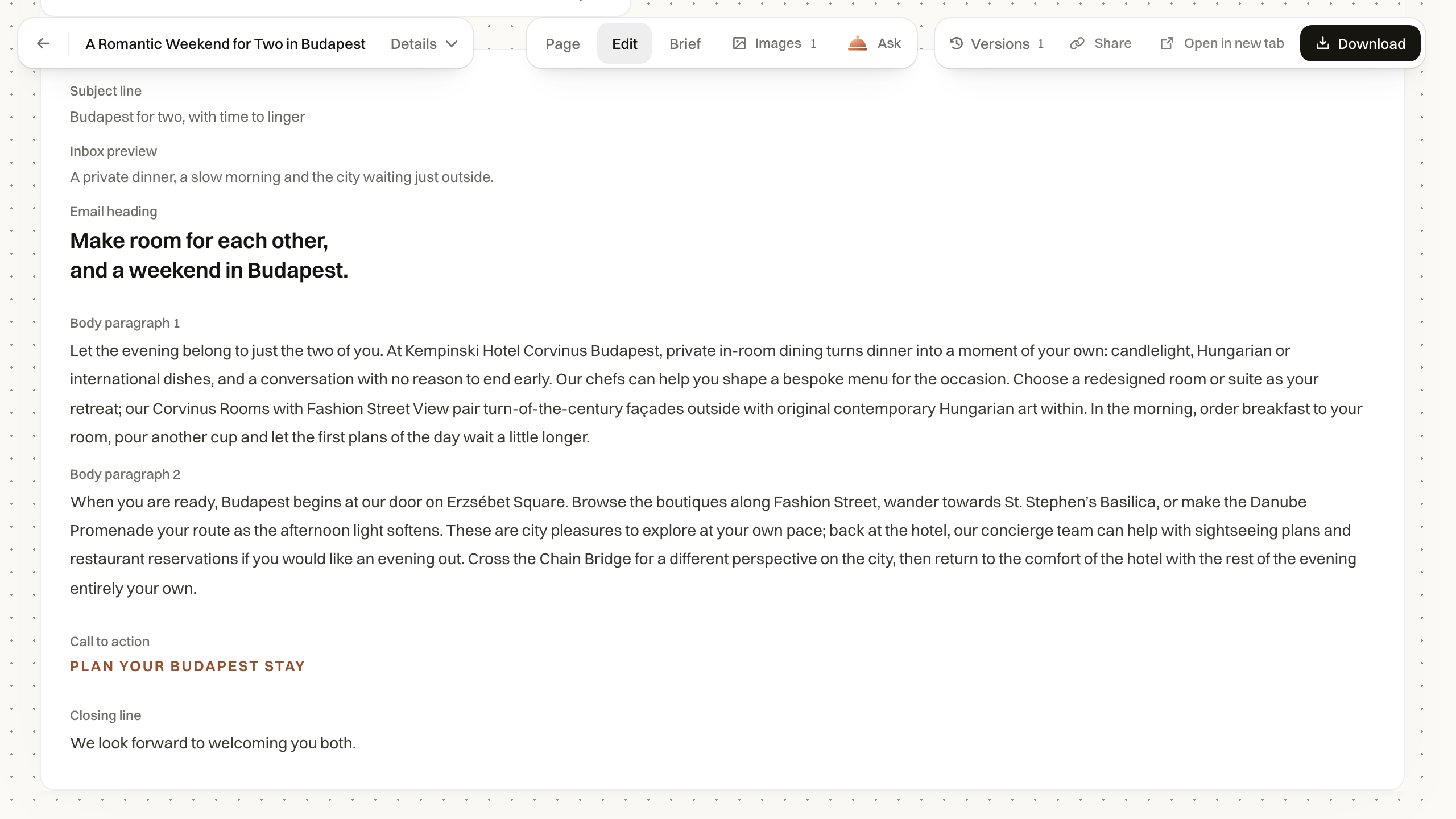
Newsletters include a subject line and preview text. Meta carousel ads can be planned card by card. Ad references help you choose an image and direction. You can change the plan before asking Lumina to write.
Keep the work and improve it
Open a saved piece to edit its words, replace a picture or ask for a specific revision. Use Versions to revisit earlier saved work, then download the version you want to use. Supported articles also have CMS export.
Library separates Produced content, Your images, Official assets and Social content. Upload hotel photos to Your images, organise saved pieces and add them to the content calendar.
Keep your hotel knowledge in one place
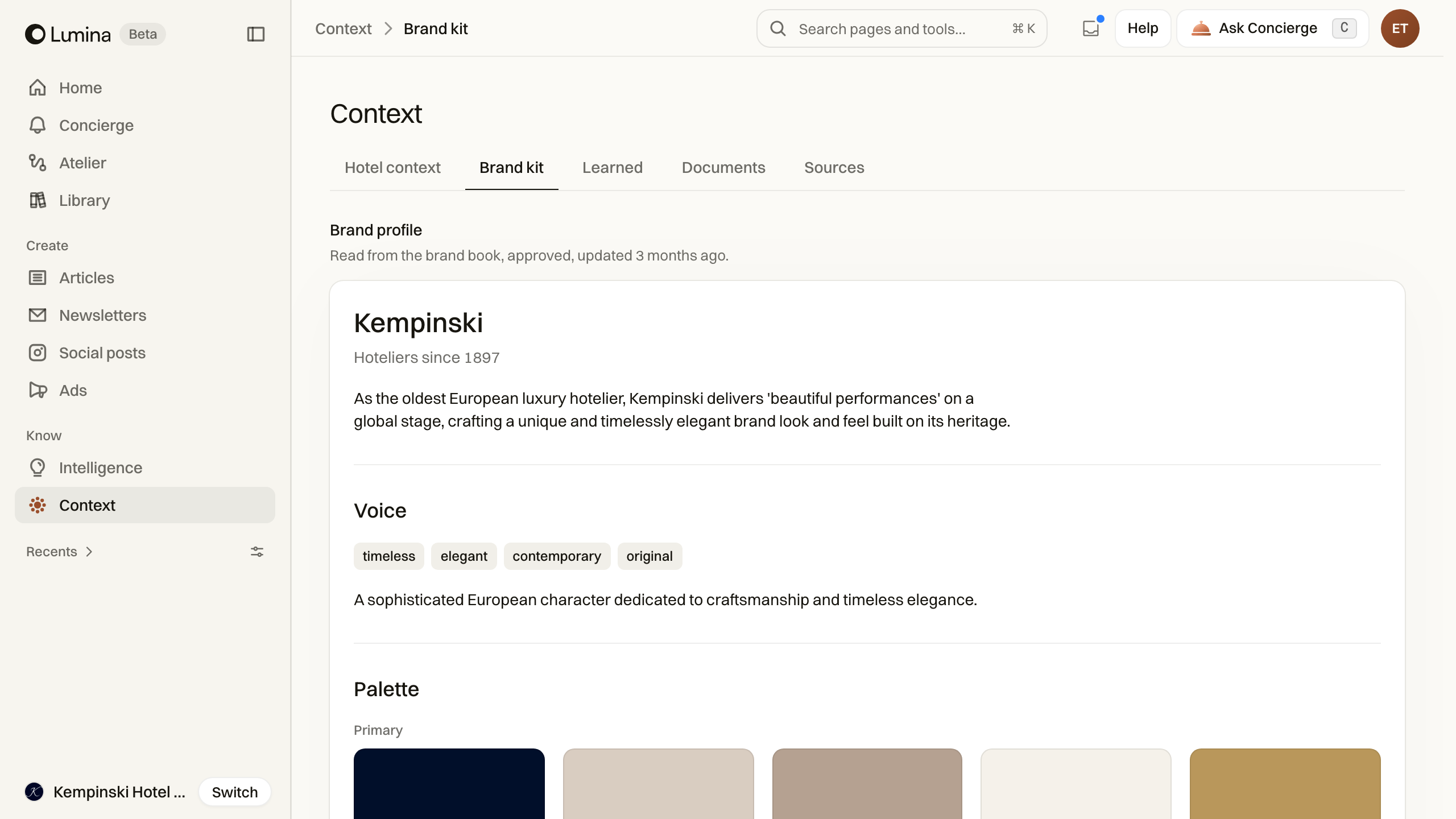
Your team should be able to use what it has already taught Lumina. Context keeps the hotel’s facts, brand guidance and documents together. Learned lets a useful writing correction guide future work.
Teach Lumina a rule such as “Use sentence case in headings.” Review suggested notes with Keep, Edit or Dismiss. Kept preferences inform future Concierge replies, articles and newsletters; you can change or remove them later.
Agencies and hotel groups can switch between the properties they can access, keeping each hotel’s research and saved work in its own context.
Manage hotel knowledgeTeach a writing preferenceUpdate the hotel’s information
Know which website pages need work
Find the pages that need attention, read the findings and run another website check after a change. You can track another URL or request a revised draft for a page.
Download Excel gives you the whole website audit, even when the table is filtered. The workbook includes the summary, pages, fixes and guest fit, with weekly and page history when earlier readings are available.
Find your work and pick up where you left off
The app’s search finds pages and tools, saved content and conversations. Recent work is there when you open search without typing.
Inbox shows work in progress, drafts ready to review and items that stopped. Open an item to return to the work.
A few more things you can use
- Put saved pieces on the content calendar and connect each date to the work in Library. Use the calendar.
- Where enabled, explore a website’s page hierarchy in Sitemap and work from captured pages. Read the Sitemap guide.
- Use Content plans to organise upcoming work, where enabled for your workspace. Explore Content plans.
- In enabled workspaces, use Audience Playbook to develop an idea from guest research and take it into ad creation. Explore Audience Playbook.
- If your account has Heritage access, explore brand archive material and read the sources behind a historical story. Explore Heritage.
- Continue interrupted work with Retry saved brief or Retry ad when that recovery is available. Recover a stopped draft.
The guides are ready too
Start with What is Lumina? to follow one job from guest research to a campaign and its content. The task guides then show you the controls, screenshots and checks for each step. Common questions explain where Lumina fits for hotel teams, agencies and groups, and how it differs from assembling a workflow around a general AI chat. Each guide has a Markdown version and a copy menu for your assistant.
If you have questions about the new workspace, use Help in the app or contact the Lumina team.
Open LuminaMarco