
Edit, restore and download content




Change a draft, return to an earlier version or download the piece you want to use.
Your first draft is a starting point. Open the piece to change the text, replace an image or ask for a specific revision. Use the saved versions if you want to return to earlier work.
In Lumina Open a saved piece from Library or its campaign.
On this page
The result has several views
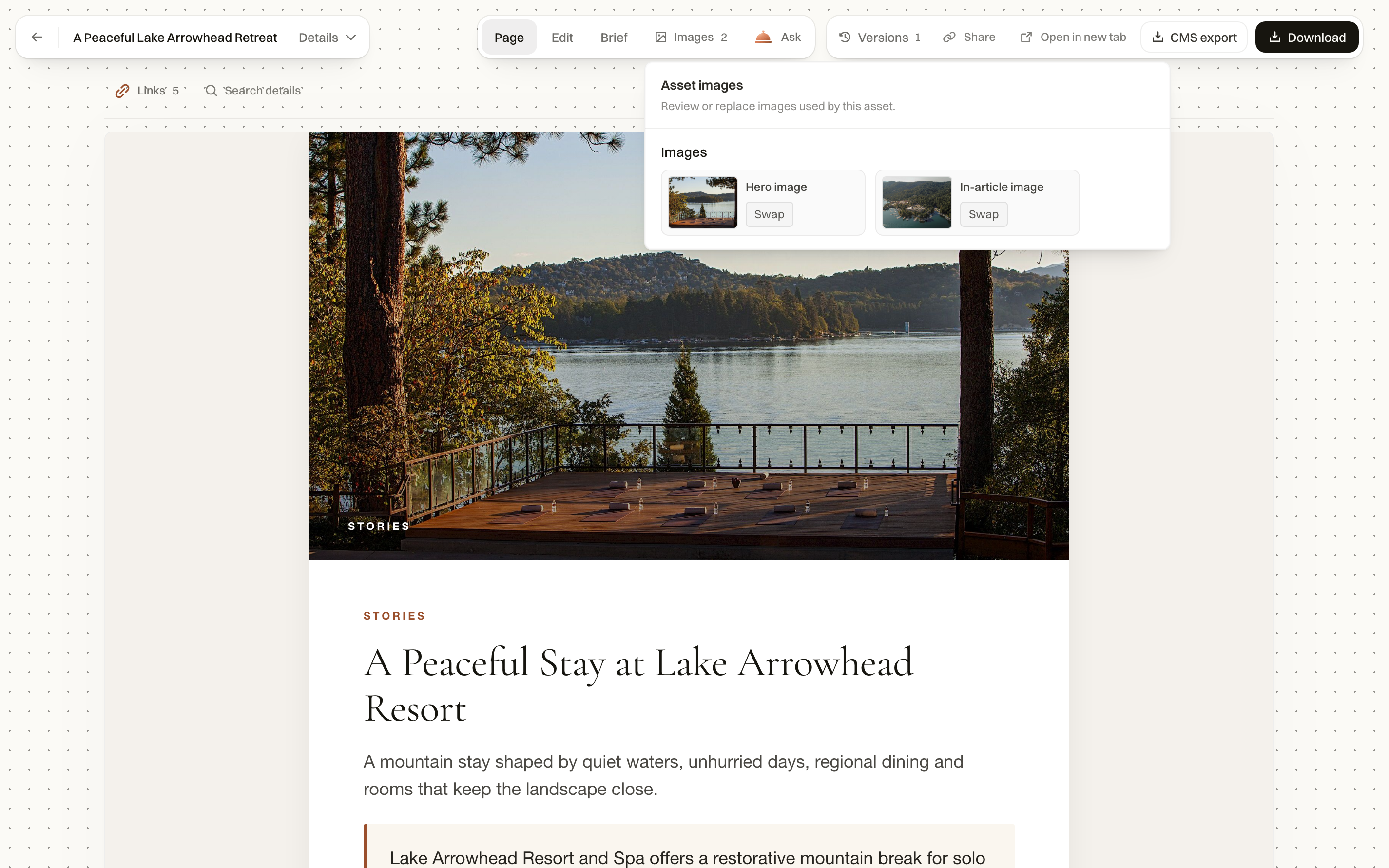
Page shows the rendered content. Edit exposes the text or fields for that format. Brief explains what the piece was asked to do. Other controls such as Images, Links or Search details appear where the format supports them.
Use the view that matches the change. A factual sentence belongs in the text editor; replacing a photograph belongs in its image slot.
Request a precise revision
Open Ask from the current piece and name the scope. “Shorten the second paragraph and keep the restaurant names unchanged” gives a clearer boundary than “make it better”.
Read the proposal and the resulting content. If the request concerns only one section, check that the rest still says what you intended.
Work with versions
- Open Versions from the result toolbar.
- Inspect the available earlier states.
- Choose the version you need and use the offered restore control.
- Read the restored content alongside the current brief.
- Save or export the state you intend to use.
Download or share the result
Download, CMS export and Share have different purposes and availability. Download gives you a file; CMS export prepares content for your website system; Share copies a link to the item. The person opening it still needs access.
None of these controls should be taken to mean that an email was sent or a paid ad went live. Check the destination workflow after the export.
Common questions
Can I go back to an earlier draft?
Open Versions on a piece that offers version history, choose an earlier saved version and review it before using it.
What is CMS export?
It prepares the supported content for your website system. It does not automatically publish the page. Review the exported fields before completing publication.