
Find your saved content and images



Open earlier work, check the version and reuse the content or images you need.
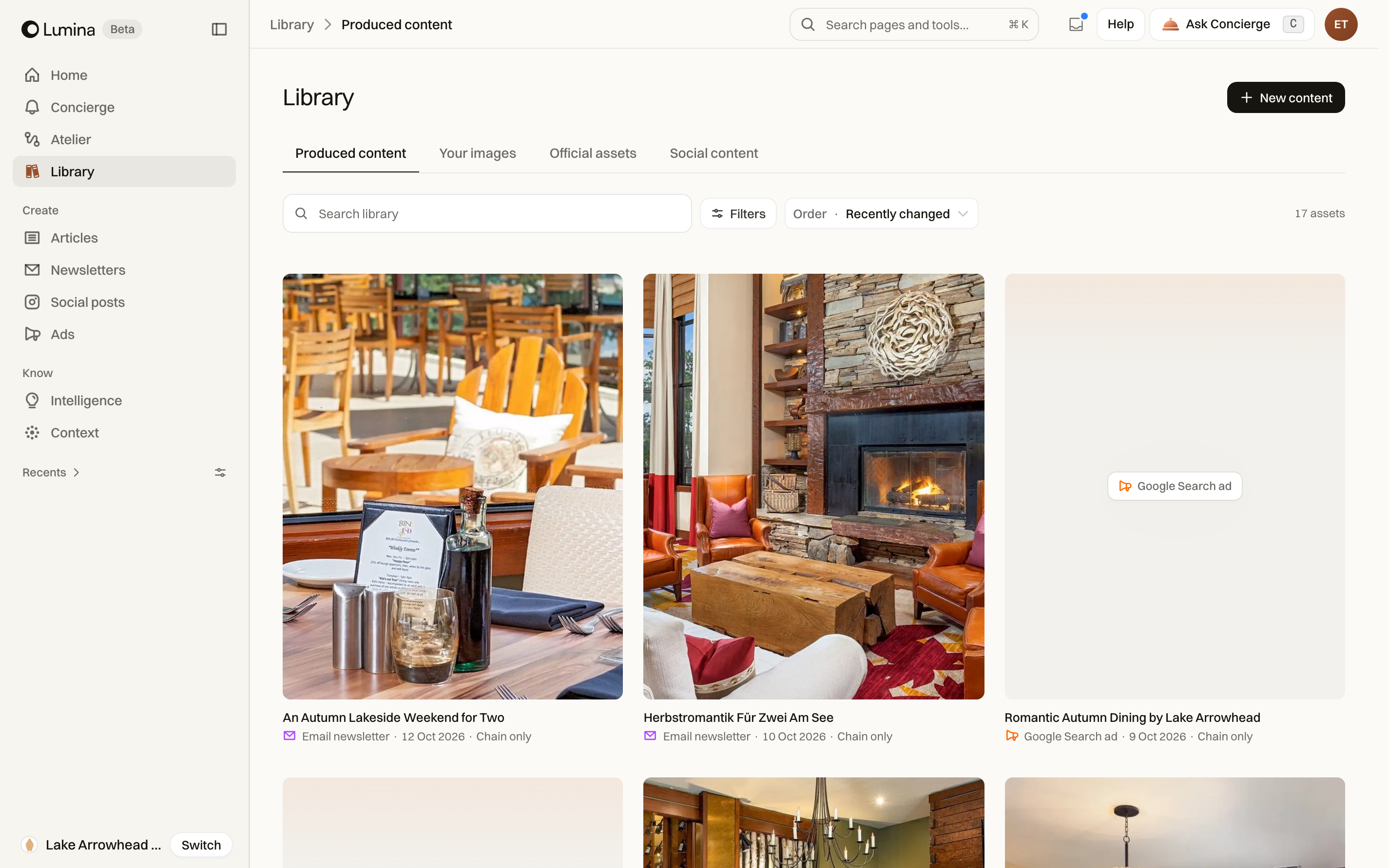
Library is where you return to saved work. Find a newsletter you started yesterday, reopen an article for a correction or look for an image. Check that you are in the right hotel’s workspace before editing.
In Lumina Open Library in the sidebar.
On this page
Choose the right part of Library
Library separates work you have created from images and material you use as references. Open the section that matches what you need, then search or filter within it.
| Item | What it means |
|---|---|
| Produced content | Articles, newsletters, social posts and ads created in Lumina. |
| Your images | Hotel photos you or your team have uploaded. |
| Official assets | Images available through the hotel’s connected official sources. |
| Social content | Social posts kept as reference material. |
Upload hotel photos
Open Your images and use the upload control to add hotel photos. Choose JPEG, PNG or WebP files up to 4 MiB each. If a file is not supported or is too large, correct it and try again.
Give the image enough context for your team to recognise it. Use photos you have permission to use, and check that the picture belongs to the property you are working on.
Open content or an image
Content opens in its detail or editor view, where you can review the piece, brief, versions and available export controls. Image details show the asset and its associated information.
Image access depends on the sources connected to the hotel and your account. A visible image still needs appropriate rights for the intended use; Lumina does not turn a reference into a licence.
Organise and reuse
- Find and open the item.
- Check its title, version and the hotel it belongs to.
- Use the available naming, grouping, sharing or assignment controls.
- Attach saved content to a calendar entry when you need to schedule the work.
- Download or export the correct version.
Check sharing scope
Use the sharing controls shown on the item. A chain-only item and an item shared with a hotel have different visibility. Review that scope before distributing a link.
Common questions
Do I need to generate a piece again to edit it?
No. Find the saved piece in Library and open it. You can continue editing the existing work.
Can I put an existing piece on the calendar?
Yes. Create or open a calendar entry and choose the saved piece from Library.