
Work with a brief and its connected content


See the pieces connected to a brief and review them when the campaign direction changes.
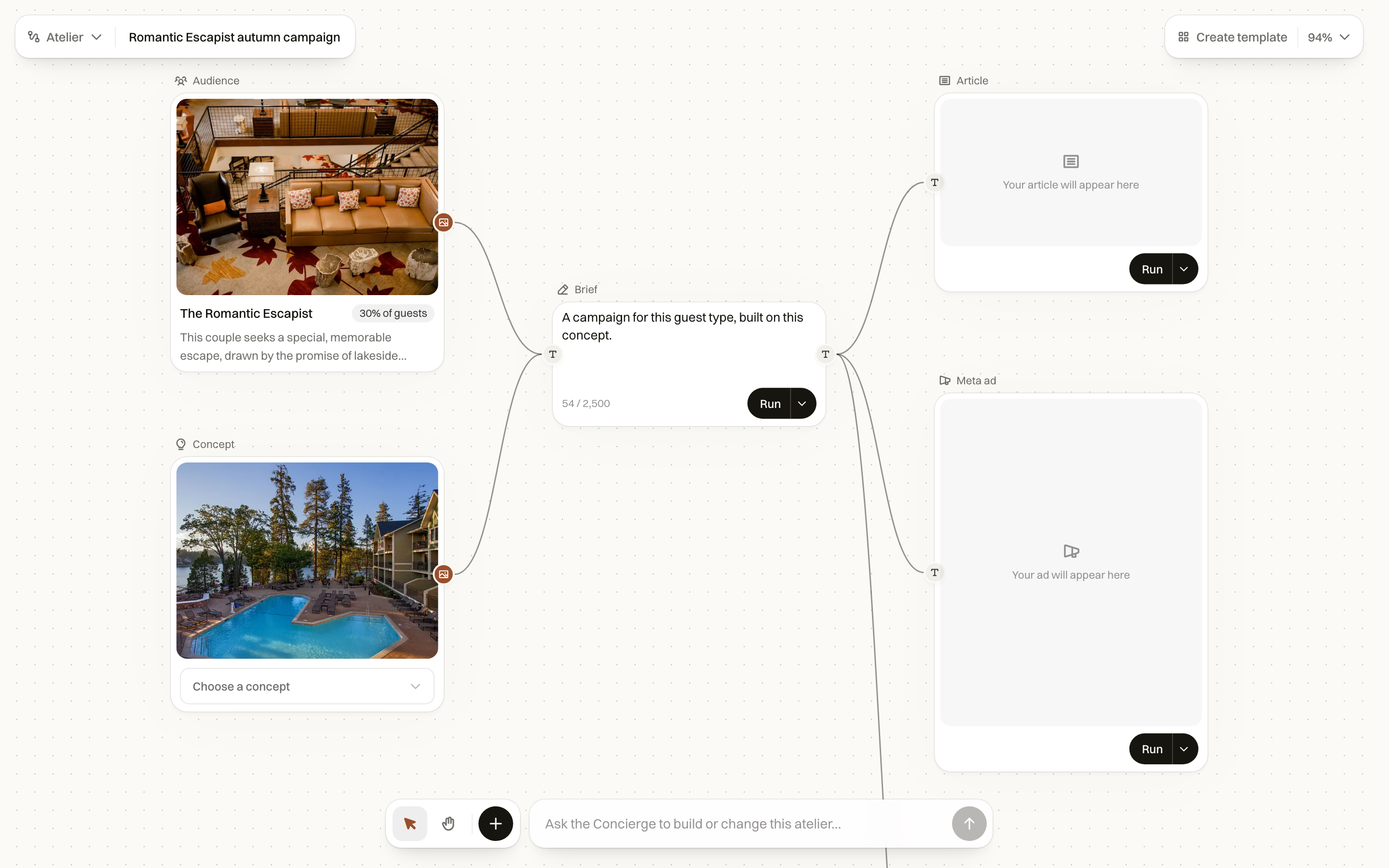
The Atelier canvas shows a brief and the content connected to it. It is useful when you want to see the whole set of work in one place. You can open a piece, work on it, and return to the same canvas.
In Lumina Open Atelier, then New atelier, an inspiration template or an existing atelier.
On this page
A connected view of the work
The canvas shows a brief and its content together. Use it when you want to see which pieces depend on the same direction and work through them together.
Open New atelier or start from an inspiration template. Return to an existing atelier to continue the same canvas. Campaigns have a separate Brief, Positioning, Plan and Content workflow.
Build the canvas with Concierge
Open Concierge from the canvas to ask for changes to that canvas. You can ask it to add a brief or output, connect the parts, change an existing item, remove one, or start the connected work.
Name the audience, purpose and pieces you need. Then check the canvas after the change. Read generated content in its editor before using it.
Build this canvas for couples visiting in autumn. Add a brief, an article and a newsletter, connect the outputs to the brief, and run the brief first. Use the hotel information already available and flag any offer details I still need to provide.Write and run the brief
- Open the Brief box and fill in What is this for? with the purpose, intended guest and constraints.
- Choose Run on that box to run the brief.
- Use Run options, then Run the brief, then every output when you want to run the connected outputs as well.
- Open an output to inspect the finished piece and use its editing controls.
Review a changed direction
After you change the brief or its inputs, look for the status beside each piece. Some pieces may not have an alignment status, so check the content itself before using it.
| Item | What it means |
|---|---|
| Inputs changed | An input used by the brief has changed. |
| Behind the brief | An output no longer follows the brief it was written from. |
| Change to review | A prepared revision is waiting on the piece. Open it to apply or discard it. |
Bring the outputs up to date
- Edit the brief and run it again.
- Ask Concierge in the canvas to review the pieces that are behind the brief.
- Open a piece marked Change to review and read the proposed revision.
- Apply or discard the change, then read the complete piece before using it.
Common questions
What does Behind the brief mean?
The piece may no longer match the brief it was written from. Open it and review what needs to change.
What does Change to review mean?
A revision is waiting for you. Open the piece, read it and choose whether to apply or discard the change.
Can Concierge change the canvas for me?
Yes, when you open it in the canvas and your role permits the action. It can add, change, connect and remove items, and start work. Proposed revisions to an existing piece still need your review.