
Put content on your calendar





Give each planned piece a date and link it to the draft you have already saved.
Use the content calendar to see what you plan to publish and when. An entry can link to a saved piece in Library, so the schedule and the content stay easy to find.
In Lumina Open Atelier and choose Content calendar.
On this page
Plan around the work
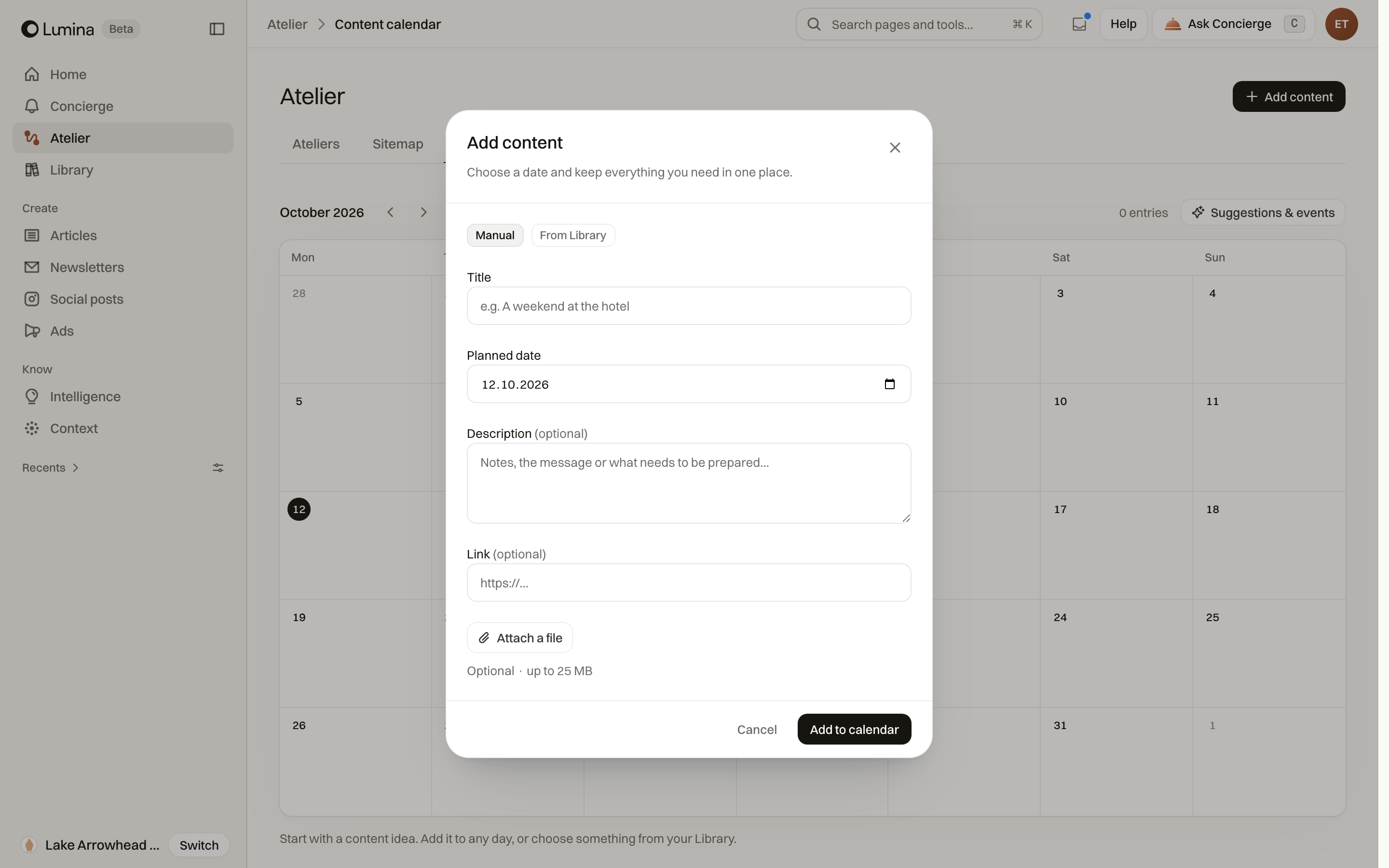
The calendar gives content a date and a place in the editorial schedule. Open an existing entry to inspect its fields, or create one for the next piece you need.
A calendar entry can point to content already saved in Library. You do not need to recreate that content just to put it on the schedule.
Attach an existing piece
- Open a date or calendar entry.
- Use the Library selection control.
- Choose the saved content you want to attach.
- Check the entry’s title, date and other available fields before saving.
Publish through your email or social platform
The calendar records the plan. Adding a newsletter does not schedule delivery through an email provider, and adding a social post does not publish it to a social account. Complete those actions in the relevant publishing tool.
Open the linked content to make editorial changes. Keep the calendar entry aligned if the publication date or purpose changes.
Common questions
Does adding a date schedule publication?
No. The calendar records your plan and links to the content. Send the email or publish the post through the relevant platform.