
Create your first newsletter



Write a hotel newsletter, check its subject and images, and save a draft you can edit.
Start with one email you actually need to send. Tell Lumina who it is for and what is happening at the hotel. It uses the hotel information in your workspace to help you plan and write the email.
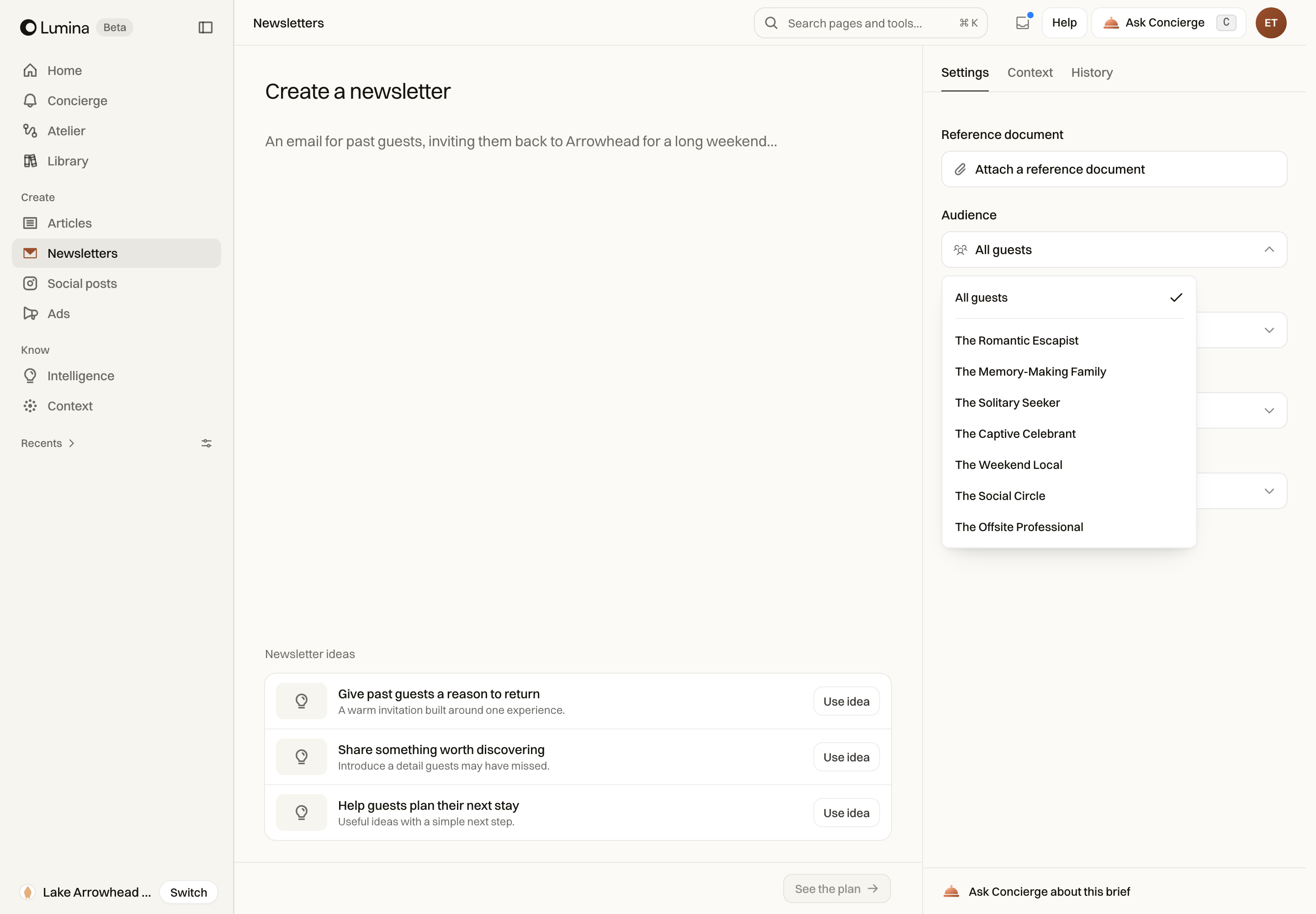
In Lumina On Home, choose Newsletters under the box. You can also choose New at the top of the sidebar, then Newsletter.
On this page
Before you start
Check the hotel name in the property switcher. Then open Context to check the facts the email needs: the restaurant name, room details, event dates or offer conditions.
You do not need to describe the whole hotel again. Add the details of this particular email and any information that must be included.
Create and review the draft
- On Home, choose Newsletters under the box.
- Describe the piece: the reason to visit, the intended guest, the occasion and the action you want the reader to take. Include dates and offer terms when they matter.
- Check the Language and Traveller market. Select a guest type if the email is for a particular audience.
- Select See the plan and review the Creative brief. If you change the brief or settings, use Update plan.
- Select Create draft. You can leave the page: the draft appears in Home, under To review, when it is ready.
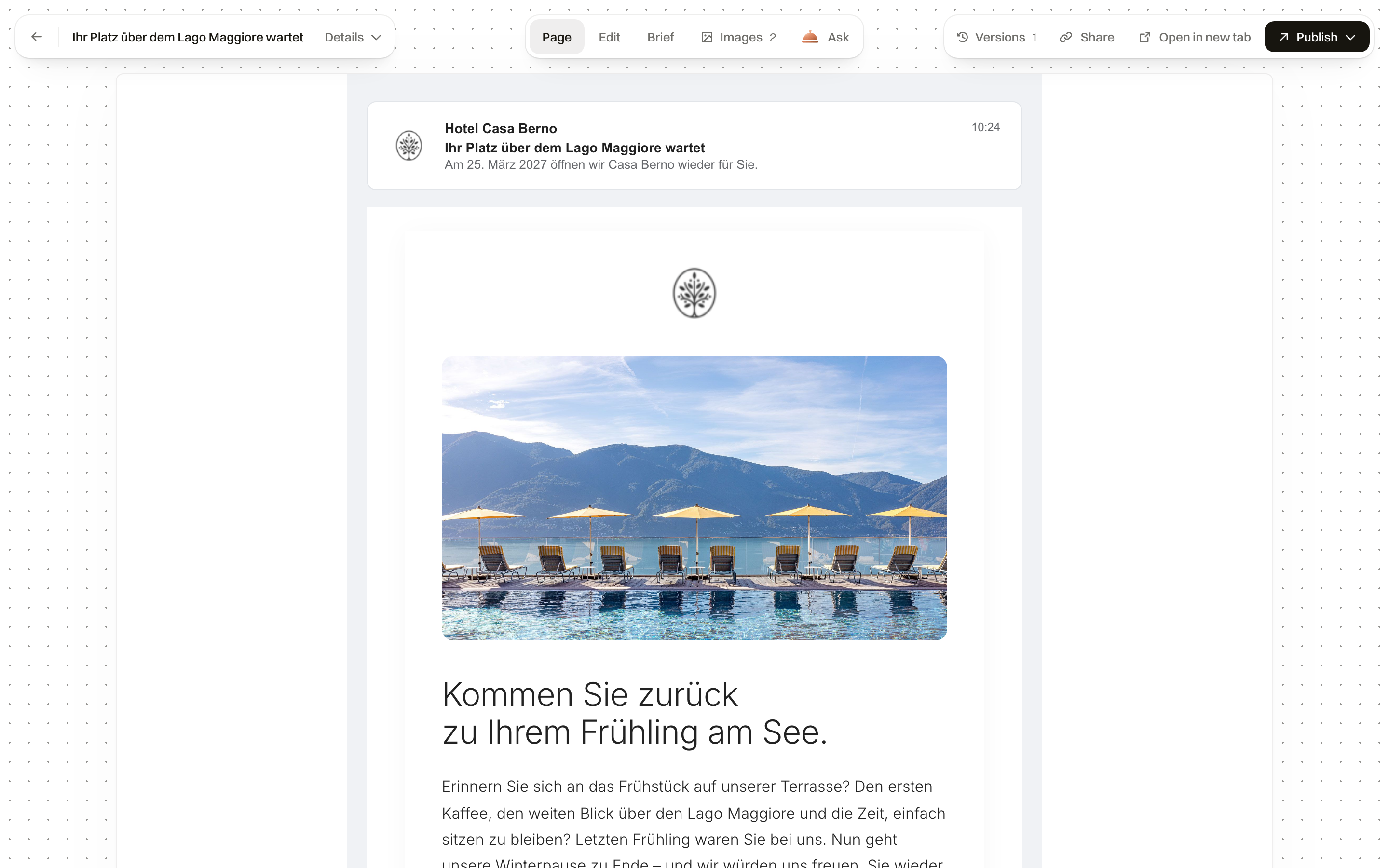
- Read the subject, preheader and email body together, then inspect the images. Edit anything that needs changing.
A useful first brief
A brief is a short description of what you want to make. Tell Lumina who the email is for, what it should say and what the reader should do next. For example:
Replace the restaurant and breakfast details with facts confirmed for your hotel.
Create an English newsletter for couples planning an autumn weekend.
Lead with the hotel’s courtyard restaurant and a late Sunday breakfast.
Use the restaurant information in Context.
Do not invent a package price or promise late checkout.
End with an invitation to explore the rooms.
Check the result
Read the email as a guest would. Does the subject give a reason to open it? Does the body explain the hotel’s offer or story? Check the links, dates, room names and images.
When the draft is ready, choose Publish. With Mailchimp or Brevo connected, send it there as a draft, then choose the recipients and send it from that tool. Otherwise, download it for your email platform.
Common questions
Do I need to write a detailed prompt?
No. Start with who the newsletter is for and the reason you are sending it. Add the facts that must appear, such as an event date or an offer. You can review and change the plan before creating the draft.
Will Lumina send the email for me?
No. Lumina can save the newsletter in Mailchimp or Brevo as a draft, or you can download it. You choose the recipients and send it from your email platform.